AI Assistant for Windows
That Can Actually Use Your PC
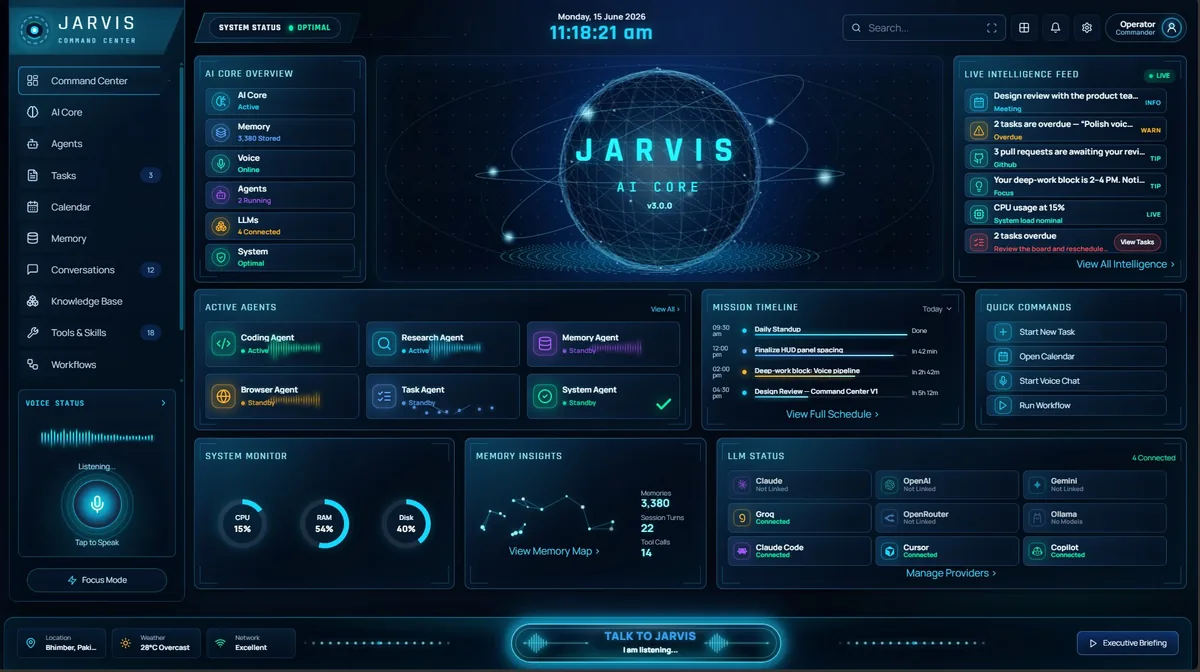
Jarvis AI Assistant is a native Windows 10 and 11 app, not a browser tab. It runs 75+ real tools on your own machine — shell, files, git, Docker, the browser — with voice, cross-session memory, and your choice of 7 LLM providers.
- Runs real tools on your PC
- Local-first privacy controls
- Your AI keys, no token markup
An AI assistant for PC that runs on your PC.
Search for “AI assistant for Windows” and most results are the same cloud chat window every other platform gets, wrapped in a desktop icon. Jarvis AI Assistant is different: it ships as a native Windows 10 and 11 app — an MSIX-packaged Electron desktop shell with tray supervision and a Command Center — installed directly from the Microsoft Store. Because it runs on your machine instead of just rendering in one, it can reach the parts of Windows a browser tab never can.
That means 75+ real tools that act on your actual PC: the shell, your filesystem, git, Docker, a browser it can drive, plus Gmail, Google Calendar, Jira and WhatsApp when you connect them. Ask it to check what is eating memory and it queries the running containers. Ask it to summarize yesterday’s commits and it reads the git log itself. Every tool call is visible and logged, so nothing runs on your PC without you being able to see exactly what happened.
Voice works the same way a desktop AI assistant should — say the wake word and talk while your hands stay on the keyboard. Memory persists across sessions on your own disk, so the assistant does not forget what you were working on when you close the app and reopen it tomorrow. And model routing across 7 LLM providers, including a fully local Ollama mode, means the AI assistant running on your PC can stay entirely offline when that is what a task calls for.
For the full breakdown of every tool, integration and privacy mode, see the features page. This page is about the part that matters most for a desktop AI assistant: how it behaves as a citizen of Windows, not a website pretending to be one.
What your PC needs.
Windows system requirements
- Windows 10 (2004+) or Windows 11
- 64-bit · 4 GB RAM
- One-click install, auto-updates
Installs from the Microsoft Store — verified and sandboxed. There is nothing else to set up before install — connect an LLM provider or Ollama, pick a privacy mode, and start talking to it.
One install, everything included.
Jarvis is available as a limited-time $9.99 one-time payment for lifetime access through the Microsoft Store, with no recurring app subscription — see the pricing page. Every tool, privacy mode and model route is included from the first launch.
Install Jarvis from the Microsoft Store, connect an AI provider (or run fully local with Ollama), and pick a privacy mode. The usage guide covers setup end to end, and if you are away from your desk, the Android companion app lets you reach the same assistant from your phone.